.png)
Send and Receive Custom Domain Emails for Free
Set up free professional email addresses like you@yourdomain.com without hosting a mail server or paying for Google Workspace. This guide shows how to receive emails using Forward Email and send as your custom domain via Gmail — fast, reliable, and 100% free.
Summarize with AI:
Using a custom domain email like contact@yourcompany.com instantly boosts your credibility. Let’s be honest — john.doe@gmail.com doesn’t exactly scream “trust me with your money.”
This guide shows how to:
- ✅ Receive emails at your preferred inbox (e.g., Gmail)
- ✅ Send emails as your custom domain address
- ✅ Do it all for free
Why not the usual options?
- Cloudflare Email Routing: Great for forwarding, but doesn’t support sending.
- Self-hosted mail server: Technically cool. Realistically, a nightmare to maintain unless you love configuring postfix, dovecot, SPF, DKIM, DMARC, and debugging why mail isn't delivered. This will keep us away from installing all these:
- MTA (Mail Transfer Agent): Handles the sending and receiving of emails via the SMTP protocol.
- MDA (Mail Delivery Agent): Delivers received emails to users' inboxes.
- MUA (Mail User Agent): The email client used to read and send emails.
- POP3/IMAP Server: Allows users to access their emails remotely.
- Webmail: Web interface for accessing emails.
- Google Workspace, Zoho, etc.: Solid, but we’re keeping costs at zero. Zoho Mail's free plan is suitable for small teams but has limited flexibility:
- Up to 5 users (including the SuperAdmin account)
- max 50 emails per day per user
- no email forwarding
- limited spam filtering.
I typically set up a few standard addresses for each custom domain — things like no-reply@example.com, contact@example.com, myaccount@example.com, and sometimes even a newsletter@gmail.com. Before you know it, the number of email addresses starts to pile up quickly.
The free stack: forwardemail.net + Gmail
We’ll use:
- forwardemail.net to handle inbound mail
- Gmail’s “send as” feature to send emails from your domain. Just keep in mind that you're still subject to Gmail’s free account limits: up to 500 emails per 24 hours, and 100 recipients per message. Each teammate gets their own quota as they use their own gmail account.
Let's review the existing solutions:
- using your DNS provider, such as Cloudflare Email Routing. However, this doesn't include the "send as" custom domain feature.
- using self-hosted Mail servers. This means managing the following components:In most use-cases, this is overkill and doesn't add much value.
- use forwardemail.net and leverage Google Mail built-in send-as feature.
In this tutorial, we'll see how to use forwardemail.net to setup your whole team's custom-domain emails for free.
In the paid plans, forwardemail offers email aliases. These aliases can be used in any email client for your emails to be send-as your custom-domain email. When using those aliases, the outbound email server are sent through Forward Email SMTP server. The aliases can be setup in forwardemail web interface.
If you want to keep using the free plan, it's totally doable. We will not use forwardemail alises, and we will send the emails through Google outbound SMTP server.
forwardemail.net setup
- Create an account on forwardemail.net and register your custom domain.
- Set DNS entries on your preferred DNS provider.
Cloudflare example:
https://forwardemail.net/img/guides/cloudflare-1fd40a6862.webm
| Type | Name | Content | Proxied |
|---|---|---|---|
| MX | @ | mx1.forwardemail.net | DNS only |
| MX | @ | mx2.forwardemail.net | DNS only |
| TXT | @ | "forward-email-site-verification=XXXXXX" | DNS only |
- Setup email forwarding
In the free plan, email forwarding rules are set in DNS entries. Fortunately, forwardemail.net allows to encrypt records at no cost.
To forward all emails from your domain to a single address:
| Type | Name | Content | Proxied |
|---|---|---|---|
| TXT | @ | forward-email=user@gmail.com | DNS only |
To forward a single email address (e.g., hello@example.com to user@gmail.com):
| Type | Name | Content | Proxied |
|---|---|---|---|
| TXT | @ | forward-email=hello:user@gmail.com | DNS only |
To forward multiple specific emails, separate each with commas:
| Type | Name | Content | Proxied |
|---|---|---|---|
| TXT | @ | forward-email=hello:user@gmail.com,support:user@gmail.com | DNS only |
You can have multiple TXT records to set multiple forwarding rules without exceeding 255 characters per line.
You should already be able to receive emails sent to your domain in your gmail account.
Send Emails as Your Domain (Gmail)
- Enable Two-Factor Authentication on your Gmail. Visit https://www.google.com/landing/2step/if you do not have it enabled.
- Go to: https://myaccount.google.com/apppasswords
Generate an App Password for "Mail". - Type in the email you want to send-as and click
Create
A popup appears with the generated app password. Copy it.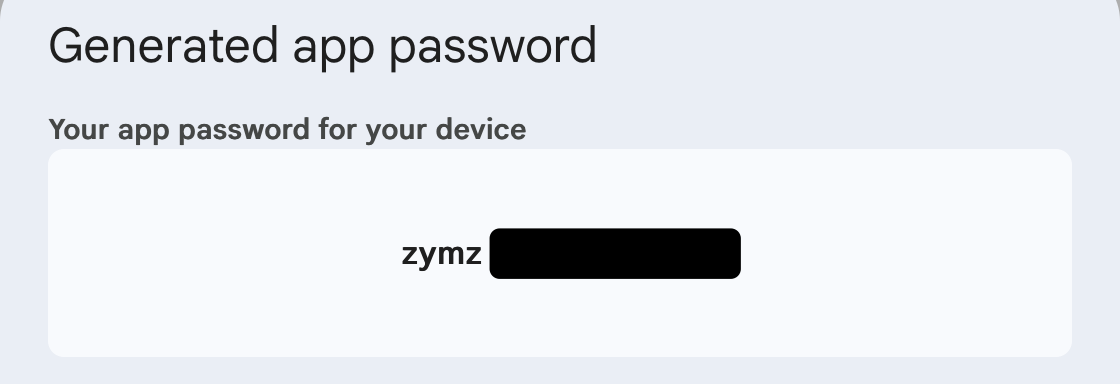
- In Gmail, go to:
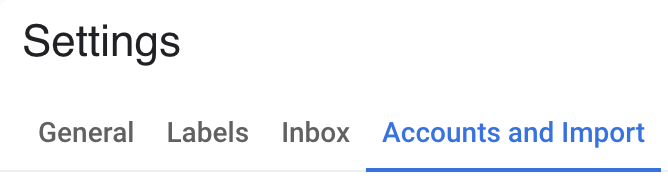
Settings > See all settings > Accounts and Import > Send mail as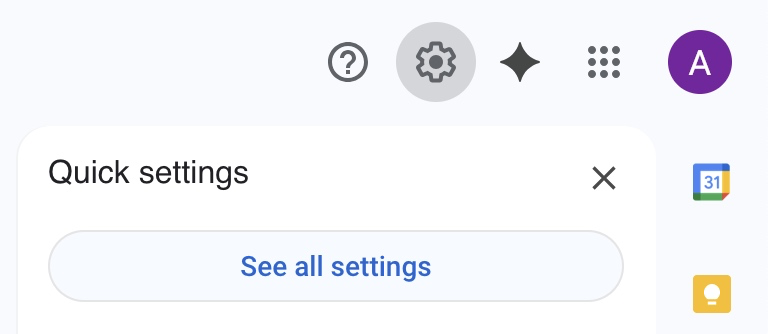
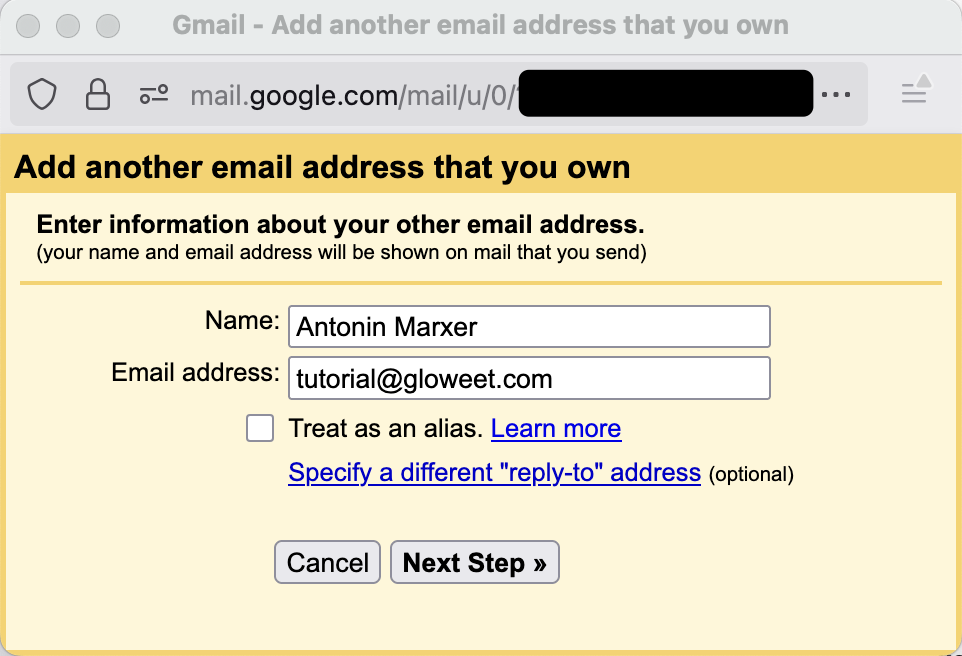
- In the
Send email assection, make sure you checkReply from the same address to which the message was sent, then clickAdd another email address.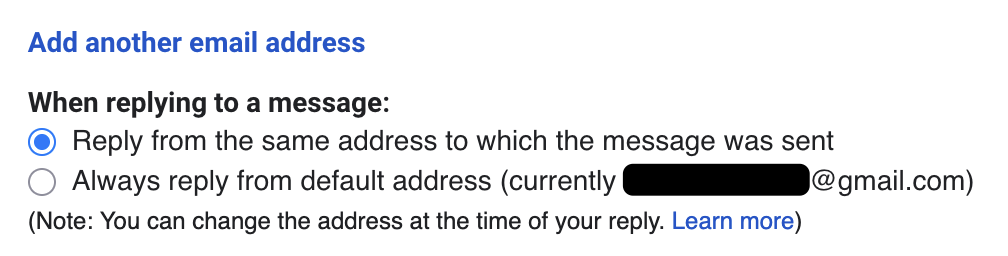
- Name: whatever you want
- Email: your custom domain address (e.g.,
contact@yourdomain.com) - Uncheck “Treat as alias"
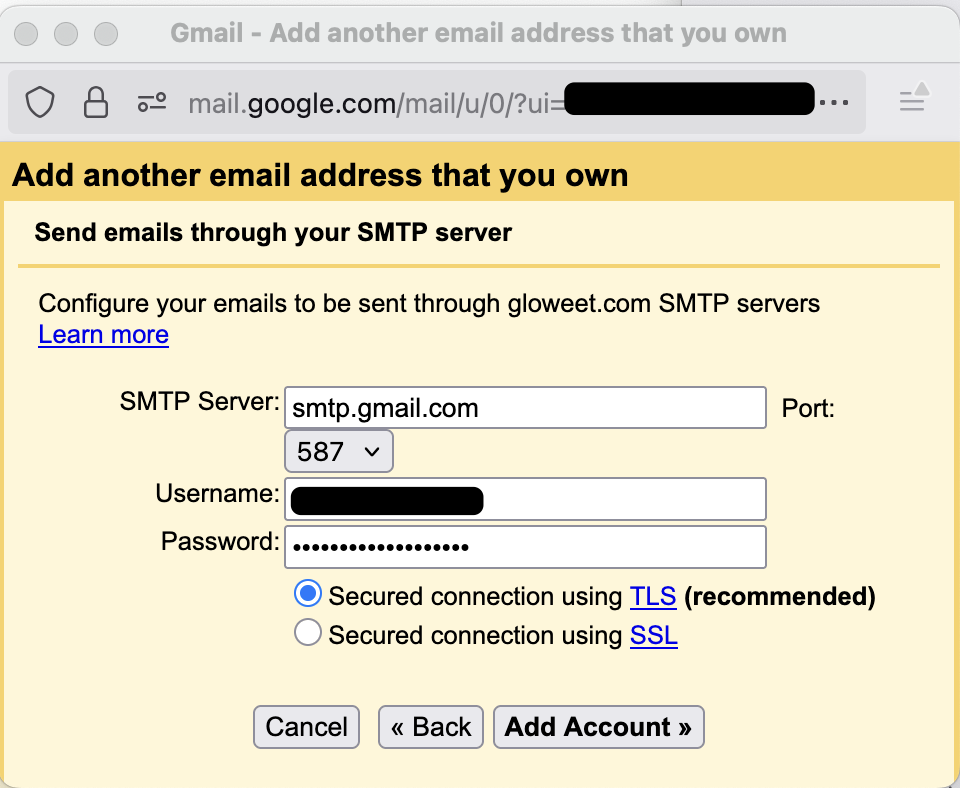
- SMTP Config:
- SMTP Server: smtp.gmail.com
- Port: 587
- Username: your original gmail address without the gmail.com (e.g. just "john.doe" if my email is "john.doe@gmail.com")
- Passord: the app password
- TLS: yes
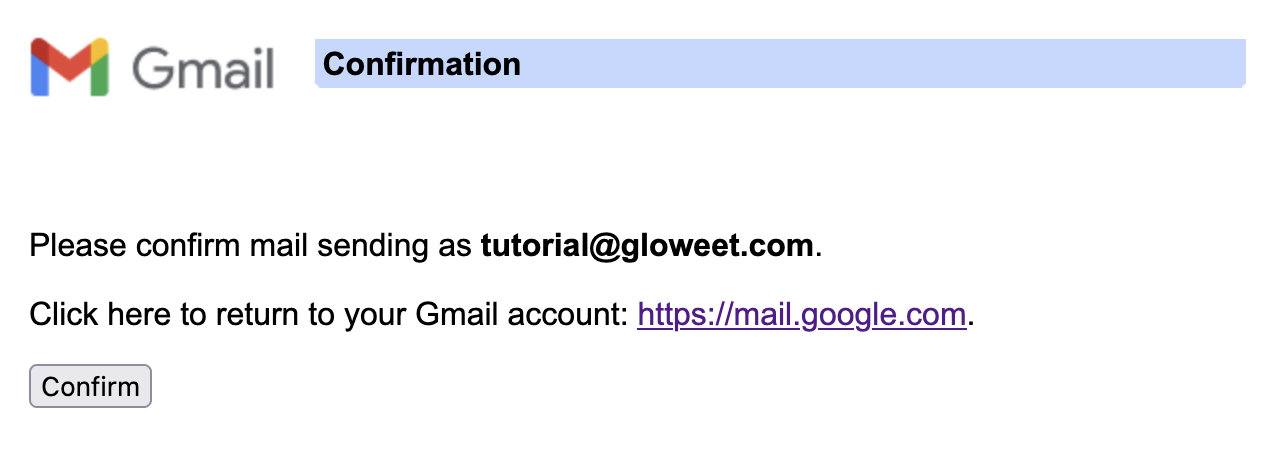
- Gmail sends a confirmation email. Click the link inside. Done!
Test It
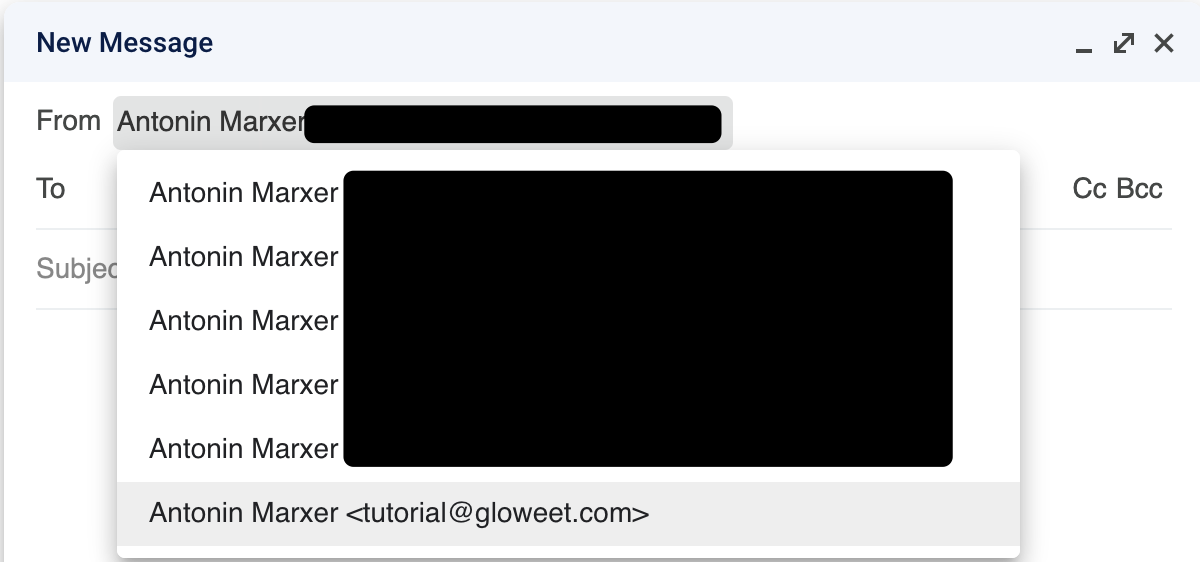
Compose a new email in Gmail: Open Gmail > Compose.
Your new address should be available in the “From” dropdown.
The email should be received on the other end!
Summary
With a few DNS changes and Gmail tweaks, you get:
- Professional-looking emails
- Centralized inboxes
- Zero hosting or subscription costs
Ideal for small teams, personal projects, or anyone who wants a professional touch—without opening their wallet.
Comments (0)
No comments yet. Be the first!